TutorialPDF Export
How to Export Microsoft Teams Chat History to PDF in 2025
Step-by-step guide to backup your Teams conversations to PDF format.
Read more100% Secure. All data processing occurs locally within your browser. No chat data is sent or stored externally, ensuring your conversations remain private and secure.
Everything happens in your browser
We never see or store your data
Your conversations stay private
Files stored on your device only
Start free or unlock unlimited backups with Pro
Perfect for getting started
Unlock unlimited power
Pro interface with unlimited features
Note: Pro access is linked to your Chrome profile. You must be signed into the same Chrome user that completed the purchase.
Everything you need to backup your Teams conversations
Seamlessly scrolls through your entire Teams chat, capturing every message without manual intervention.
Compiles all screenshots into a single, uninterrupted PDF document, maintaining the natural flow of conversations.
Compresses screenshots to reduce PDF file size without compromising readability or quality.
Generates a .TXT file with all conversations separated by time and author for easy reference.
Visual progress indicators keep you informed about the backup process stages.
All screenshots are processed locally within your browser, ensuring your data remains private and secure.
Get started in minutes with our simple process
Add Teams Chat Backup to your Chrome browser from the Chrome Web Store. Installation takes just seconds.
Use any Google/Gmail account to authenticate (doesn't need to match your Microsoft Teams account). This is only for license verification.
Open Microsoft Teams and select the specific chat or channel you wish to back up.
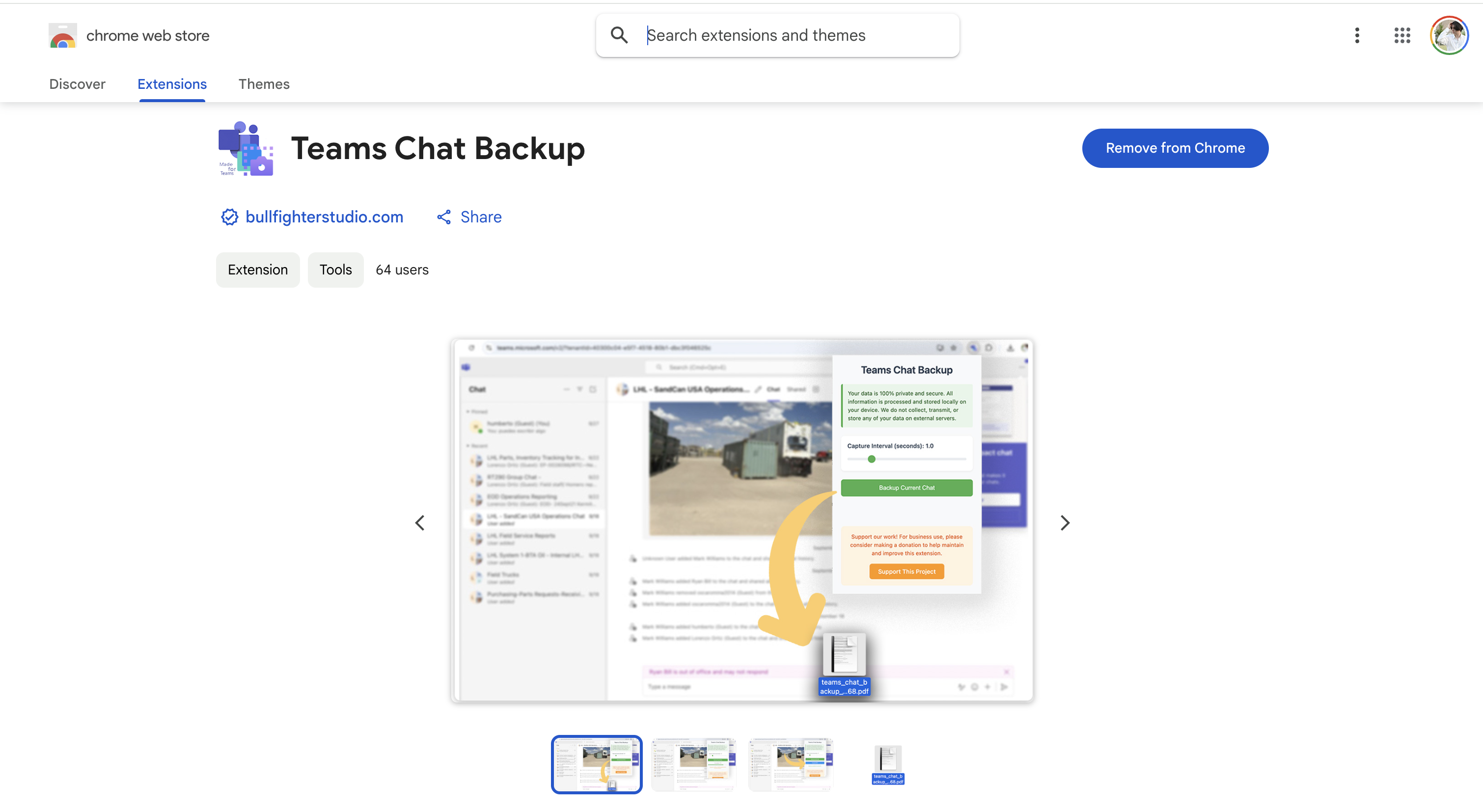
Click the Teams Chat Backup icon in your Chrome toolbar. Adjust the capture interval slider (0.1 to 5 seconds between screenshots) and click 'Backup Current Chat'.
Once complete, download your continuous chat history as a PDF document and optionally as a TXT file with timestamped conversations.
Your Google and Microsoft accounts are completely separate!
The Google/Gmail account you use to sign in to the extension does NOT need to be the same as your Microsoft Teams account. These are two independent authentication systems:
Used only for extension license verification and authentication
The account you're logged into Teams with in your browser
Example:
You can sign in to the extension with personal@gmail.com while backing up Teams conversations from work@company.com
No connection or linking between the two accounts is required!
Teams Chat Backup is officially supported until December 31, 2026
Bug fixes and security updates throughout the support period
We'll maintain compatibility with Microsoft Teams interface changes
Full technical support and assistance for all users
Found a bug or have an idea? Let us know! Your feedback helps make Teams Chat Backup better for everyone.
Trusted by professionals across industries
Keep records of important client conversations and project discussions for future reference.
Meet data retention requirements and maintain conversation archives for legal purposes.
Archive team knowledge, decisions, and important discussions that shouldn't be lost.
Guides, tutorials, and tips for Microsoft Teams users
Step-by-step guide to backup your Teams conversations to PDF format.
Read moreEverything about backing up Teams chats for legal and regulatory requirements.
Read moreLearn how to create permanent backups before auto-deletion kicks in.
Read more