How to Export Microsoft Teams Chat History to PDF in 2025
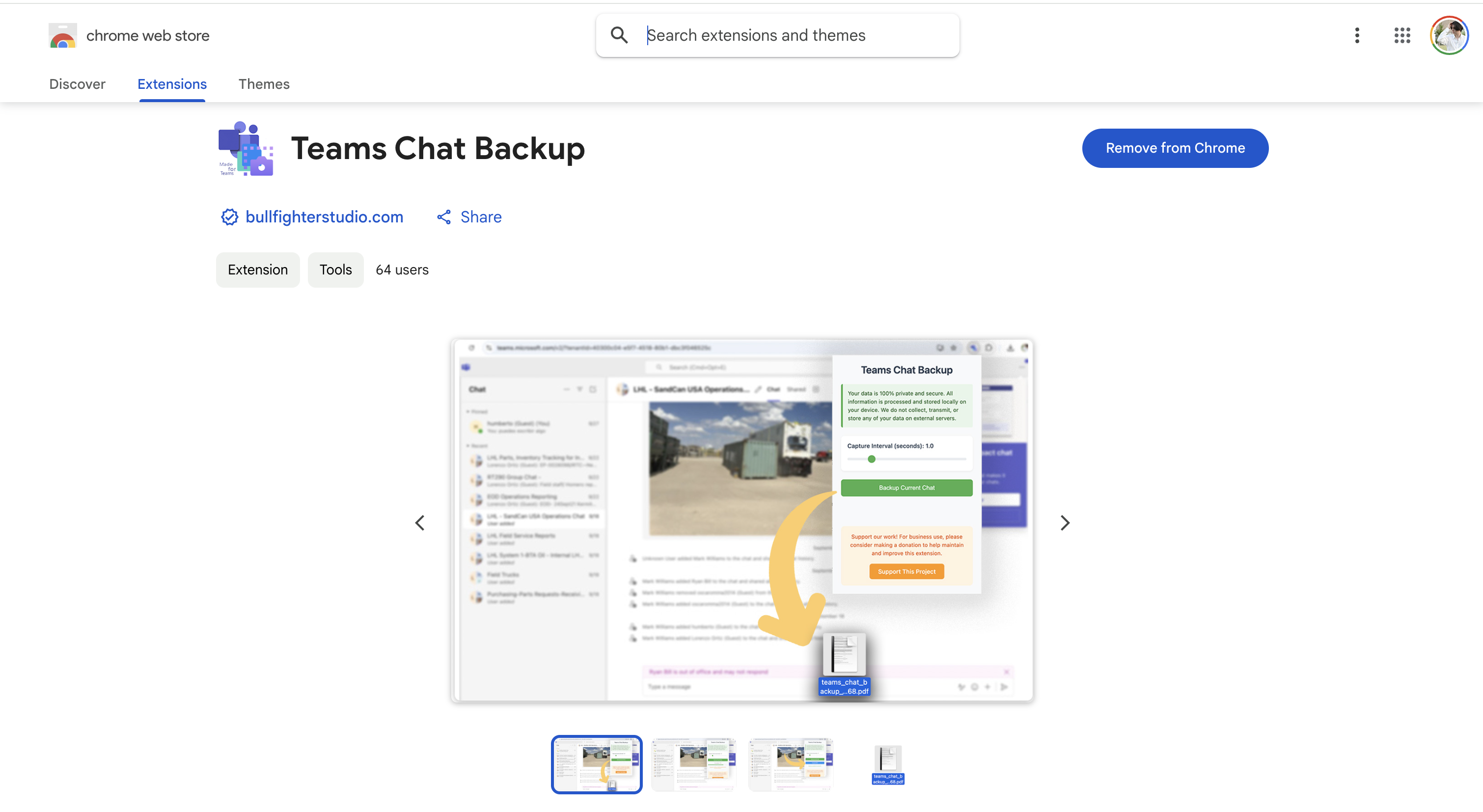
Need to save your Microsoft Teams conversations? Whether it's for compliance, legal records, or simply keeping important discussions safe, this guide will show you the fastest and easiest way to export Teams chats to PDF.
Why Export Microsoft Teams Chats?
Microsoft Teams doesn't provide a built-in way to export individual chat conversations to PDF. This can be frustrating when you need to:
- Compliance & Legal: Keep records for regulatory requirements or legal proceedings
- HR Documentation: Archive important employee communications
- Project Archives: Save project discussions for future reference
- Personal Backup: Keep important conversations before leaving a company
- Data Retention: Bypass Microsoft's automatic deletion policies
The Easiest Method: Teams Chat Backup Extension
The fastest way to export Teams chats is using the Teams Chat Backup Chrome extension. It automatically scrolls through your conversation, captures screenshots, and compiles them into a single PDF document.
Step-by-Step Guide
Step 1: Install the Extension
Visit the Chrome Web Store and click "Add to Chrome". The installation takes just a few seconds.
Step 2: Open Microsoft Teams in Chrome
Navigate to teams.microsoft.com and sign in to your account. The extension works with both personal Microsoft accounts and business Microsoft 365 accounts.
Step 3: Select Your Chat
Navigate to the specific chat or channel conversation you want to export. The extension works with:
- Direct messages (1:1 chats)
- Group chats
- Channel conversations
- Meeting chats
Step 4: Start the Backup
Click the Teams Chat Backup icon in your Chrome toolbar. You'll see a simple popup interface. Optionally adjust the capture interval (0.1 to 5 seconds between screenshots), then click "Backup Current Chat".
Step 5: Wait for Completion
The extension will automatically scroll through your entire conversation, capturing everything. You'll see a real-time progress indicator showing the backup status.
Step 6: Download Your Files
Once complete, you can download:
- PDF file: Visual backup with screenshots preserving the exact chat layout
- TXT file: Plain text export with timestamps and author names
Privacy & Security
Teams Chat Backup processes everything locally in your browser. Your chat data is never sent to any external servers. The PDF files are generated on your device and saved directly to your downloads folder.
Free vs Pro Version
The extension offers both free and paid options:
Free Version
- Short chat backups
- PDF and TXT export
- Includes branding footer
Pro Version - $50
- Unlimited page backups
- Full chat history capture
- No watermarks or branding
- Lifetime access
Alternative Methods
While Teams Chat Backup is the easiest solution, here are some alternatives:
- Manual screenshots: Time-consuming and produces fragmented results
- Microsoft eDiscovery: Requires admin access and Microsoft 365 E3/E5 license
- Third-party enterprise tools: Expensive solutions designed for large organizations
- Copy-paste to Word: Loses formatting and takes significant time
Conclusion
Exporting Microsoft Teams chat history doesn't have to be complicated. With the Teams Chat Backup extension, you can create comprehensive PDF backups in just a few clicks. Whether you need it for compliance, legal purposes, or personal archiving, this tool makes the process simple and secure.